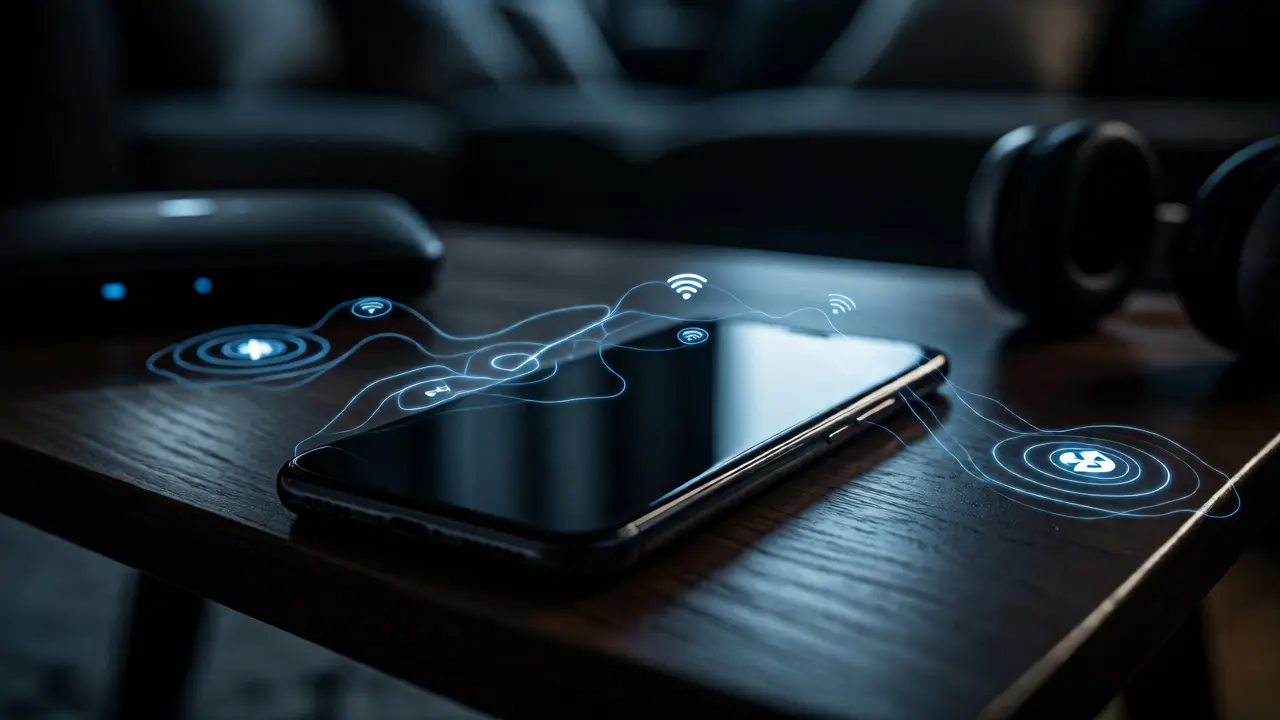
Imagine you’re investigating a case where the suspect claims they were never near the victim’s apartment. They have an alibi for the phone call, but what about the physical proximity? Your smartphone is constantly broadcasting its identity to the world, even when you aren’t looking at the screen. Every time your device connects to a network or pairs with a headphone, it leaves a digital footprint that can place you in a specific location at a specific time. This isn’t just theory; it’s the core of modern wireless artifact analysis. In this article, we’ll break down how Wi-Fi and Bluetooth logs serve as critical device association evidence, helping you prove who was where, when.
Why Wireless Logs Matter More Than You Think
Most people think of GPS as the primary way to track movement. But GPS has blind spots. It fails indoors, in dense urban canyons, or when battery saver modes disable background location services. That’s where wireless radio data steps in. Unlike GPS, which relies on satellites, Wi-Fi and Bluetooth rely on local infrastructure and nearby devices. If your phone connected to a coffee shop’s Wi-Fi, that connection event is logged by both the phone and potentially the access point. These logs are sticky, persistent, and incredibly detailed.
For a forensic examiner, these artifacts answer three fundamental questions:
- Who: Which device initiated the connection?
- Where: What network or peripheral was involved?
- When: Did the interaction occur, and for how long?
You might be wondering, "Isn't this just metadata?" Yes, but it’s actionable metadata. A timestamped entry showing a successful WPA2 handshake between a suspect’s iPhone and a router in the victim’s home is far more compelling than a vague cell tower ping. It proves direct interaction.
The Anatomy of Wi-Fi Association Evidence
Let’s get into the weeds of how Wi-Fi connections are recorded. When a device scans for networks, it doesn’t just see names (SSIDs); it sees Basic Service Set Identifiers (BSSIDs), which are essentially MAC addresses of the access points. Your operating system stores these BSSIDs to facilitate quick reconnections later. This is the gold mine for investigators.
In Windows, the registry holds a wealth of information under HKEY_LOCAL_MACHINE\SYSTEM\CurrentControlSet\Services\Tcpip\Parameters\Interfaces. Here, you’ll find subkeys corresponding to each network interface card. Inside those keys, look for ProfileList. Each profile contains the SSID, the security type (WEP, WPA2, Open), and crucially, the last connect time. On macOS, the file /Library/Preferences/SystemConfiguration/com.apple.airport.preferences.plist serves a similar purpose, storing a history of known networks with timestamps.
Android and iOS handle this differently due to sandboxing, but the principle remains. Android logs often reside in /data/misc/wifi/WifiConfigStore.xml (on older versions) or within the Settings database. iOS keeps a record in the com.apple.wifi.known-networks.plist. The key takeaway? Even if a user deletes their browser history, the OS-level network configuration files rarely get wiped unless a full factory reset occurs.
| Operating System | Primary Artifact Location | Data Captured | Retention Risk |
|---|---|---|---|
| Windows 10/11 | Registry (HKLM) | SSID, BSSID, Last Connect Time, Security Type | Low (persists across updates) |
| macOS Ventura+ | SystemConfiguration plist | SSID, UUID, Join Date, Last Used | Medium (cleared on network forget) |
| Android 12+ | Settings Database / WifiService logs | Network ID, Scan Results, Connection Events | High (aggressive log rotation) |
| iOS 16+ | Known Networks Plist | SSID, BSSID, Last Joined, RSSI History | Low (encrypted backup dependent) |
Bluetooth Pairing: The Closer Proximity Proof
If Wi-Fi tells you someone was in the building, Bluetooth tells you they were in the room. Bluetooth operates over short ranges-typically 10 to 30 meters-and requires explicit pairing for many devices. This makes Bluetooth artifacts powerful for establishing close-proximity associations.
Consider a scenario where a suspect denies being in a car with a friend. However, the forensic image of the suspect’s phone shows a paired Bluetooth device named “Friend’s Honda Civic” with a last connection timestamp matching the time of the alleged ride. This is strong corroborating evidence. Bluetooth pairing logs store the remote device’s address, name, and class of device (e.g., audio, computer, phone). They also indicate whether the pairing was inbound (the other device initiated) or outbound.
On Windows, Bluetooth pairings are stored in the registry under HKEY_LOCAL_MACHINE\SYSTEM\CurrentControlSet\Enum\USB and related Bluetooth stack keys. For Linux systems using BlueZ, check /var/lib/bluetooth/<adapter_address>/<remote_device_address>. These directories contain JSON files detailing trusted status, pairing times, and link keys. Mobile devices are trickier due to encryption, but tools like Cellebrite or GrayKey can extract the underlying SQLite databases containing these records.
One nuance to watch: Bluetooth Low Energy (BLE) beacons. Modern smartphones scan for BLE advertisements continuously. While not a "pairing," these scan results can show that a phone detected a specific beacon ID (like a retail store tag or a smart lock) at a given time. This passive detection is harder for users to clear because it happens automatically in the background.
Correlating Timestamps and Time Zones
A timestamp is useless if you don’t know the context. Digital forensic exams often fail because of time zone mismatches. Your laptop might log a Wi-Fi connection in UTC, while your phone logs it in local time. Or worse, one device had Daylight Saving Time enabled, and the other didn’t.
Always establish a baseline. Check the system clock offset. Look for NTP (Network Time Protocol) synchronization events in the logs. If you find a discrepancy of more than a few minutes, document it. A common pitfall is assuming all devices sync perfectly. They don’t. A device offline for weeks will drift significantly.
Furthermore, consider the concept of "ghost connections." Sometimes, a device remembers a network but hasn’t actually connected recently. The OS might update the "last seen" field simply by scanning and recognizing the BSSID, without completing a full authentication handshake. To distinguish between a real connection and a mere scan, look for DHCP lease renewals or DNS queries associated with that session. A true connection usually triggers a cascade of network activity, whereas a scan is silent.
Common Pitfalls and Countermeasures
Defense attorneys love to attack digital evidence, and wireless artifacts are no exception. Here are the most common challenges you’ll face and how to counter them.
1. "The User Forgot the Network." Yes, forgetting a network removes the saved profile. But does it delete the history? Not always. Some OS versions keep orphaned entries in temporary caches or event logs. Always check unallocated space or shadow copies if available. Also, if the user re-added the network later, the new entry will have a fresh timestamp, but the old one might still linger in deeper system logs.
2. "MAC Randomization." Modern iOS and Android devices use private Wi-Fi addresses (MAC randomization) to prevent tracking. This means the BSSID you see might not match the physical hardware address of the access point. However, the *client* side often uses a stable identifier for saved profiles. Ensure you understand how your specific extraction tool handles randomized MACs. Often, the SSID and the signal strength patterns remain consistent enough to identify the network despite the changing client MAC.
3. "Shared Devices." Was it really the suspect’s phone? If multiple family members share an iPad, whose Bluetooth headphones are those? Correlate wireless artifacts with user account logs. If the device supports multi-user accounts (like Android tablets or Windows laptops), ensure the wireless profile is tied to the correct user ID. A generic guest profile might be shared, reducing its evidentiary weight.
Practical Workflow for Extraction
Ready to dig in? Follow this streamlined workflow to capture wireless evidence effectively.
- Acquire the Image: Use a write-blocker for physical drives. For mobile, perform a logical or file-system extraction depending on the tool’s capabilities and legal constraints.
- Identify the OS Version: Artifact locations change frequently. Verify the exact build number before parsing. A path valid in iOS 15 might be empty in iOS 17.
- Parse Network Profiles: Extract SSIDs, BSSIDs, and security types. Filter out irrelevant networks (like "MyPhone_Hotspot") unless relevant to the case.
- Extract Event Logs: Look for connection/disconnection events. On Windows, check the Event Viewer logs for WLAN-AutoConfig events (Event IDs 8000-8005). On Linux, grep through
/var/log/syslogor journalctl for wpa_supplicant messages. - Cross-Reference Bluetooth: Match paired devices with known peripherals. Note the pairing date versus the last usage date. A device paired years ago but used yesterday is significant.
- Validate Against Alibis: Plot the timeline. Does the wireless activity align with the claimed location? If the suspect says they were at work, but their phone connected to a home Wi-Fi network at 9 AM, you have a contradiction.
Remember, correlation is key. A single artifact is weak; a cluster of artifacts is strong. Combine Wi-Fi logs with Bluetooth pairings, cell tower data, and application usage logs to build a cohesive narrative.
Real-World Application: The Case of the Missing Laptop
Let’s ground this in reality. Imagine a corporate espionage case. An employee allegedly took a company laptop home to steal data. The employee claims they only used it at the office. You examine the laptop’s hard drive.
You find a Wi-Fi profile for "HomeNet_5G" with a last connect timestamp of 8:45 PM on a Tuesday. The office closes at 6 PM. You also find a Bluetooth pairing for "LivingRoomSpeaker" with a last active time of 9:15 PM. Neither of these devices exists in the office environment. The timestamps are consistent with evening hours. The employee’s phone, extracted separately, shows a Bluetooth connection to the same speaker at the same time. This triangulation places the laptop and the phone in the same physical space-the employee’s living room-well after work hours. The defense argues the laptop was left charging overnight. But the active Bluetooth session suggests human interaction. This subtle distinction turns a simple presence claim into an active usage allegation.
Frequently Asked Questions
Can a user hide their Wi-Fi connection history?
Users can "forget" networks, which removes the saved profile from the main configuration list. However, this does not always delete historical logs found in system event viewers or temporary cache files. Additionally, some operating systems retain ghost entries or scan results that persist longer than the explicit profile. A complete wipe of all traces usually requires a factory reset, which is destructive and easily detectable.
How accurate are Bluetooth timestamps for proximity?
Bluetooth timestamps are highly accurate for determining when a connection was established or terminated, provided the device clocks are synchronized. However, they do not provide precise distance. A connection could mean the devices were 1 meter apart or 30 meters apart. To refine proximity, examiners often look at Received Signal Strength Indicator (RSSI) values if logged, though these are less commonly preserved in standard OS logs compared to raw RF captures.
Does MAC randomization invalidate Wi-Fi evidence?
No, it complicates it but does not invalidate it. MAC randomization changes the client’s address per network or per session. However, the SSID and BSSID (access point address) remain constant. Furthermore, the internal logic of the OS often maps the randomized MAC back to a stable profile ID. By correlating the timing of connections with other artifacts (like app usage), you can still confidently attribute the activity to the specific device.
What is the difference between a scan and a connection in logs?
A scan indicates the device detected the network's presence but did not necessarily interact with it. A connection involves a full authentication handshake, IP assignment (DHCP), and data transfer. Scans happen frequently and passively. Connections are active events. For evidentiary purposes, a connection is much stronger proof of intent and interaction than a mere scan result.
Are cloud backups reliable for retrieving deleted wireless logs?
It depends on the platform. iOS iCloud backups generally include settings and network preferences, so if a network was forgotten locally, it might still exist in a previous backup snapshot. Android backups vary significantly by manufacturer and version. Google One backups may include some settings, but detailed system logs are often excluded. Always test your recovery method against a known dataset before relying on it in court.
Next Steps for Investigators
If you’re new to wireless artifact analysis, start small. Pick a known device-a spare phone or an old laptop-and map out exactly where the Wi-Fi and Bluetooth logs live. Create a cheat sheet for your team. Then, run a test case: connect to a new network, browse the web, disconnect, and then try to trace every step of that process in the logs. Once you master the basics of a single OS, expand to others. The landscape shifts quickly, but the underlying principles of persistence and correlation remain your best tools for uncovering the truth hidden in the airwaves.