The Windows Registry isn't just a settings database-it's a digital fingerprint of everything that’s happened on a system. In digital forensics, it’s one of the most powerful sources of evidence. Forget about deleted files or browser history for a moment. The registry tells you who logged in, what programs ran, which networks were connected, and even which folders a user opened-even if they were deleted weeks ago.
What Exactly Is the Windows Registry?
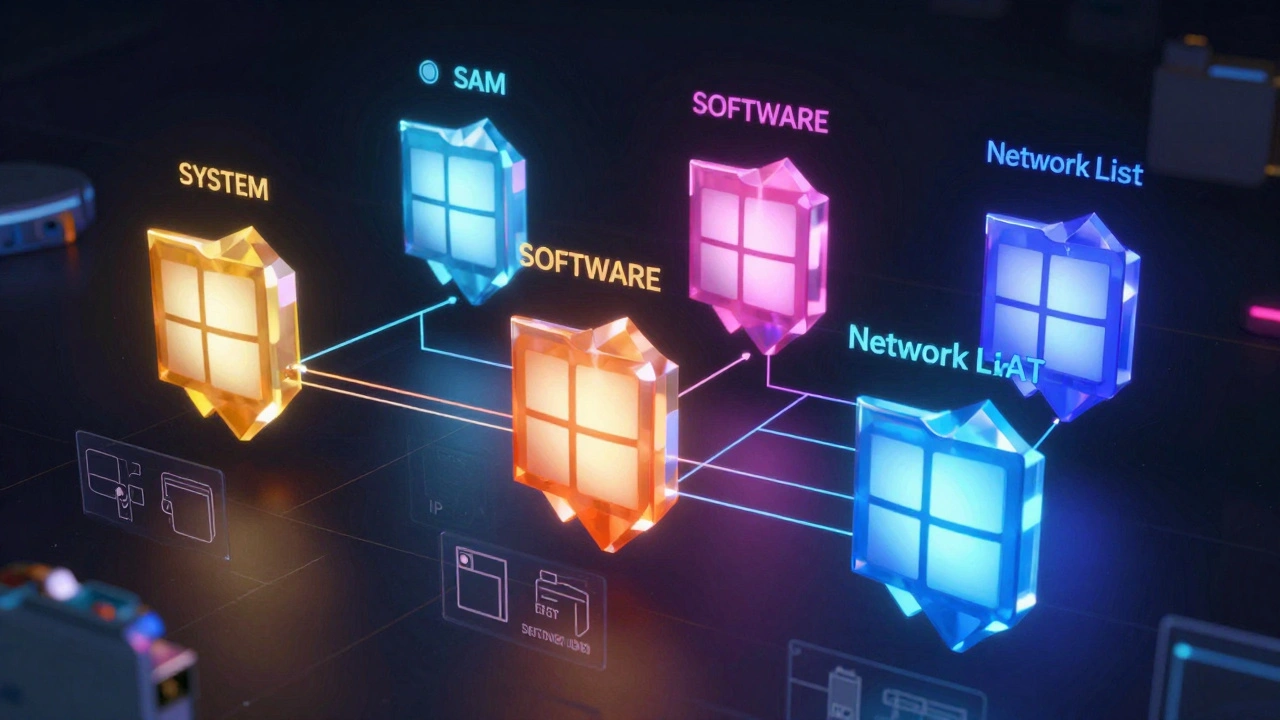
The Windows Registry is a hierarchical database that stores configuration data for the operating system and installed software. It’s not a single file. It’s a collection of six core hive files stored at C:\Windows\System32\Config\. Each hive is a separate file, loaded into memory when Windows boots. These files are SYSTEM, Contains system-level settings, service configurations, and hardware profiles., SAM, Stores local user accounts, passwords, and group memberships., SOFTWARE, Lists all installed software, file associations, and user profile paths., SECURITY, Holds system-wide security policies and audit settings., DEFAULT, Defines default user settings for new accounts., and BCD, Manages boot configuration data..
Each hive is stored in 4096-byte blocks and backed up by .log and .alt files. These backup files can help recover data if the main hive is corrupted or overwritten. In forensic investigations, you don’t just look at the live registry-you extract these files from a disk image or seized drive. The registry doesn’t update in real time like a log file. It’s a snapshot of system state at the time of shutdown or crash.
Key Hives and What They Reveal
HKEY_LOCAL_MACHINE\SOFTWARE\Microsoft\Windows NT\CurrentVersion\ProfileList
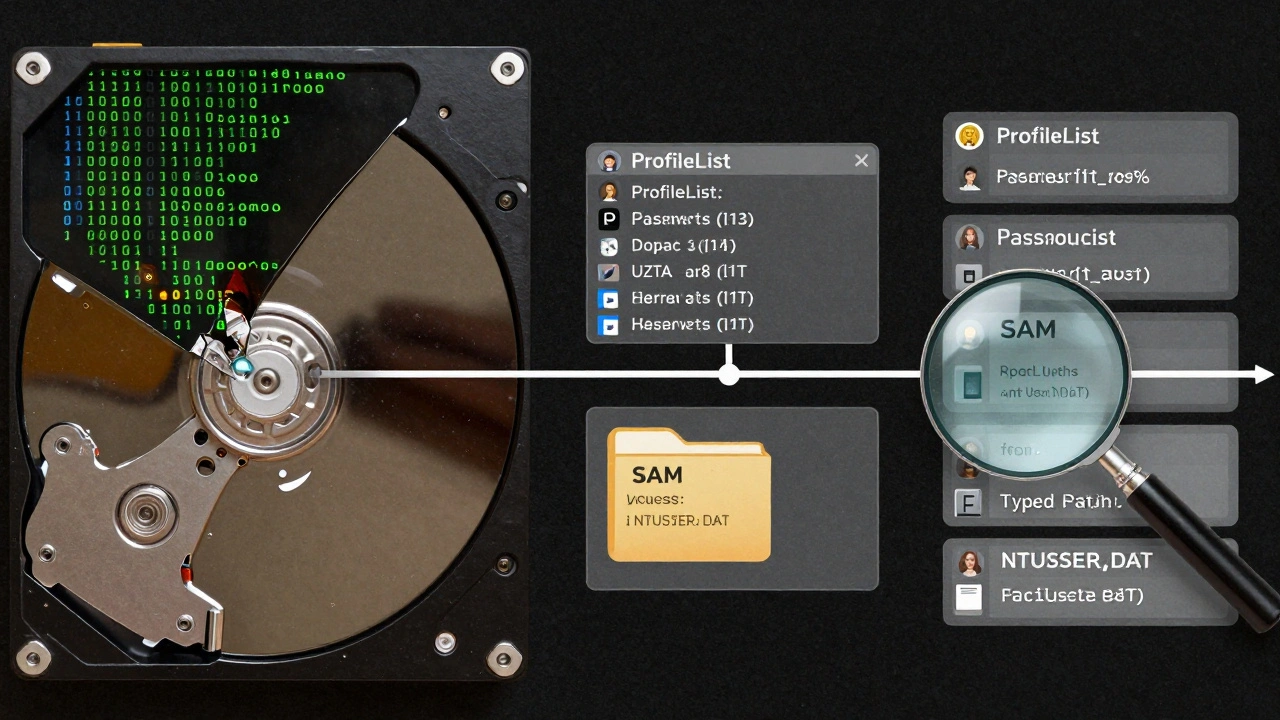
This path is your go-to for identifying user accounts. Each subkey is named after a Security Identifier (SID), like S-1-5-21-1234567890-123456789-1234567890-1001. The ProfileImagePath value tells you exactly where the user’s profile folder is stored (e.g., C:\Users\JohnDoe). The State value is critical: a value of 0 means the profile is active. A value of 2 or higher? That’s a deleted or corrupted profile. You can use this to track users who logged in but later had their accounts removed.
HKEY_LOCAL_MACHINE\SAM\Domains\Account\Users
This is where the SAM hive stores password hashes, last logon times, and login attempt counts. Every local account has a subkey under Users. The F value inside each user key contains encrypted password data. Tools like John the Ripper or Hashcat can crack these hashes if you have the right hardware. Even if you can’t crack them, the number of failed logins can indicate brute-force attacks or password guessing attempts.
HKEY_LOCAL_MACHINE\SYSTEM\CurrentControlSet\Services
Malware often hides by turning itself into a system service. This hive lists every service installed on the system. The Start value tells you whether a service starts automatically (value 2), manually (value 3), or is disabled (value 4). A service with a strange name like "svch0st" or "WindowsUpdateHelper" that starts automatically? That’s a red flag. The ImagePath value shows the exact file path the service loads from. If it points to %TEMP% or AppData\Local\Temp, it’s almost certainly malicious.
User Activity: NTUSER.DAT and UsrClass.dat
Each user has their own registry hive: NTUSER.DAT and UsrClass.dat. These files are located in the user’s profile folder (C:\Users\Username\) and are loaded into HKEY_CURRENT_USER when the user logs in. Unlike the system hives, these files are unique to each person.
Under HKEY_CURRENT_USER\SOFTWARE\Microsoft\Windows\CurrentVersion\Explorer\RecentDocs, you’ll find a list of recently opened files. Each entry is named with a number (0, 1, 2...) and contains the file path, timestamp, and sometimes even the program used to open it. This isn’t just a list of documents-it’s a timeline of user behavior. Did someone open classified files? Did they access a USB drive? This data answers those questions.
Shellbags data, stored in HKEY_CURRENT_USER\SOFTWARE\Microsoft\Windows\Shell\Bags and BagMRU, tracks folder views. Even if a folder was deleted, shellbags can still show that a user opened it. For example, if a suspect accessed C:\Users\Public\Shared\SecretDocs, and that folder was later wiped, shellbags may still show the folder name, view settings, and when it was last accessed. This is gold for proving intent.
TypedPaths under HKEY_CURRENT_USER\SOFTWARE\Microsoft\Windows\CurrentVersion\Explorer\TypedPaths logs every folder path a user typed into File Explorer’s address bar. If someone typed \\192.168.1.10\AdminShare, that’s a direct indicator they accessed a network share-likely for data theft.
Network Forensics: Where the System Connected
NetworkList Profiles under HKEY_LOCAL_MACHINE\SOFTWARE\Microsoft\Windows NT\CurrentVersion\NetworkList\Profiles lists every Wi-Fi or Ethernet network the machine connected to. Each profile has a name, connection type (wireless, wired), first and last connection timestamps, and a unique profile GUID. If a laptop was used in a hotel room, a coffee shop, and then a suspect’s home, this data maps the device’s movement.
Network interface details live in HKEY_LOCAL_MACHINE\SYSTEM\ControlSet001\Services\Tcpip\Parameters\Interfaces\. Each interface has a subkey with a long GUID name. Inside, you’ll find the IP address, subnet mask, default gateway, and DNS servers. If the system had a static IP, you’ll see it here. If it used DHCP, you’ll see the lease time and renewal history. This helps link a device to a specific network at a specific time.
How to Extract and Analyze Registry Hives
You can’t just open the registry files with Notepad. They’re binary and structured. You need tools designed for forensic analysis.
- FTK Imager: Open the tool, add the drive as a logical image, navigate to \Windows\System32\Config\, right-click each hive file (SYSTEM, SAM, SOFTWARE), and export them to a safe location. Always verify the file hash before and after export.
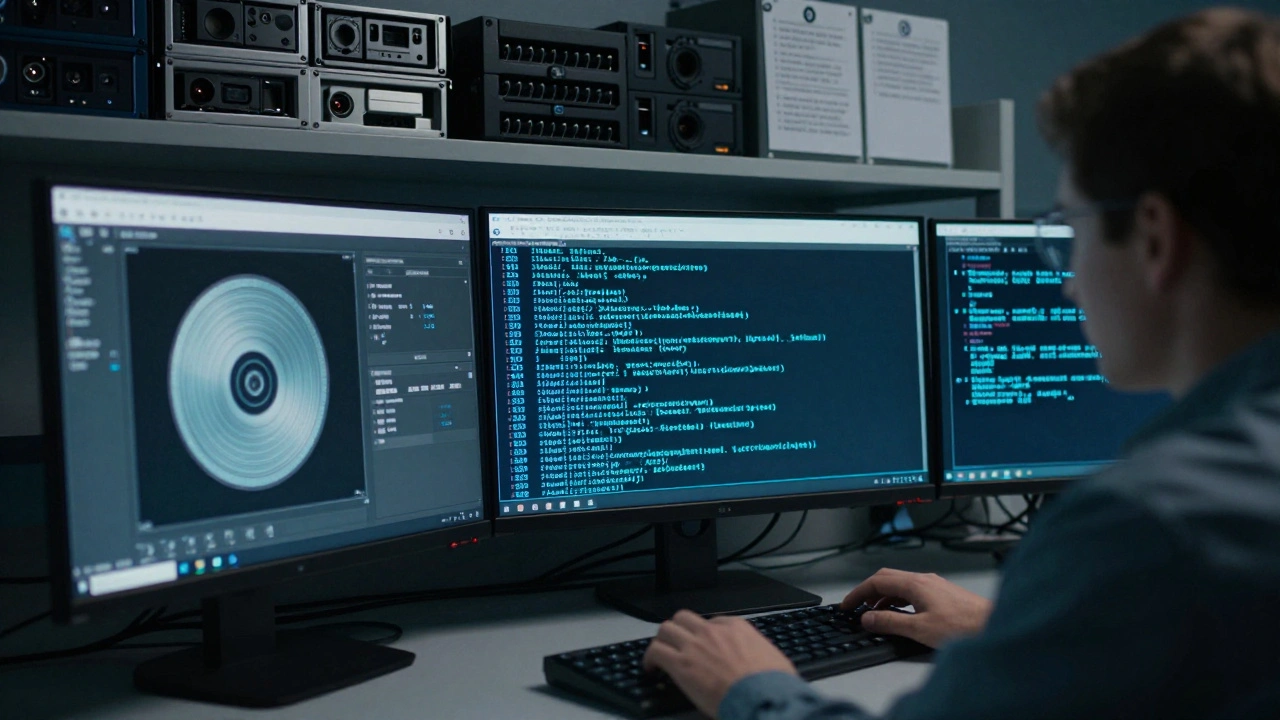
- Belkasoft X: Load the disk image, go to System Files → Registry, and it automatically parses all hives. It groups artifacts like user profiles, services, and recent documents into easy-to-read tables.
- RECmd: A command-line tool that lets you extract specific keys. For example:
RECmd.exe -f SAM -k "SAM\Domains\Account\Users" -v "F"pulls all password hashes from the SAM hive. - PowerShell: Use
Get-ItemProperty -Path "HKLM:\SOFTWARE\Microsoft\Windows NT\CurrentVersion\ProfileList"to list all profile SIDs and paths. But be careful-running this on a live system alters timestamps and can overwrite evidence.
Never analyze a live registry on a suspect machine. Always create a forensic image first. The registry is volatile. Even opening RegEdit can write new data.
Why This Matters in Investigations
Registry analysis doesn’t just confirm what happened-it reveals intent. A deleted file? Maybe it was accidental. But if the registry shows the user opened it 17 times in one day, then deleted it right before the system was seized? That’s not accidental. It’s evidence.
When a user account was created, when a USB device was plugged in, when a remote desktop connection was established-all of it’s logged in the registry. Investigators use this to build timelines, identify insider threats, track malware persistence, and prove who was using a computer.
One real case from 2024 involved a corporate data breach. The suspect had wiped their hard drive. But the registry hive from the system restore partition still existed. Analysis showed they had accessed a server share, copied 800 confidential files, and then deleted their user account. The SID in ProfileList matched a deleted account. The TypedPaths showed they’d typed the server’s IP address manually. The SAM hive showed their password had been changed the day before the breach. That’s how they were convicted.
| Hive | Location | Key Forensic Artifacts |
|---|---|---|
| SYSTEM | C:\Windows\System32\Config\SYSTEM | Installed services, startup types, hardware profiles |
| SAM | C:\Windows\System32\Config\SAM | Local user accounts, password hashes, login counts |
| SOFTWARE | C:\Windows\System32\Config\SOFTWARE | Installed programs, file associations, user profile paths |
| NTUSER.DAT | C:\Users\ |
Recently opened files, shellbags, typed paths, desktop settings |
| NetworkList | C:\Windows\System32\Config\SOFTWARE\Microsoft\Windows NT\CurrentVersion\NetworkList\Profiles | Network names, connection times, device types |
Common Pitfalls to Avoid
- Don’t rely on RegEdit for forensic work. It modifies the registry on live systems.
- Don’t assume deleted user profiles mean nothing. Their SID and profile path are still in SYSTEM and SOFTWARE.
- Don’t ignore .log files. They can help reconstruct deleted registry entries.
- Don’t forget about UsrClass.dat. It’s often overlooked, but it holds shellbags and application-specific settings.
Registry analysis is not magic. It’s methodical. It requires knowing where to look, how to extract, and how to interpret the data. The registry doesn’t lie. It doesn’t forget. And in the right hands, it tells the whole story-even when the user thought they erased everything.
Can you recover registry data after a system wipe?
Yes, if the registry hive files were not overwritten. Forensic tools can recover registry data from unallocated space on a drive, even after a full format. The .log and .alt files are especially useful for reconstruction. However, if the drive was securely wiped with multiple overwrites (like DoD 5220.22-M), recovery becomes nearly impossible.
Is registry analysis useful for remote access investigations?
Absolutely. The Remote Desktop Protocol (RDP) leaves traces in the registry. Check HKEY_LOCAL_MACHINE\SOFTWARE\Microsoft\Windows\CurrentVersion\Run for RDP-related services. Look at NetworkList for connections to IP addresses on port 3389. Also, check NTUSER.DAT for recently accessed files from network shares-this often indicates data exfiltration via remote sessions.
What’s the difference between NTUSER.DAT and UsrClass.dat?
NTUSER.DAT stores user-specific Windows settings like desktop wallpaper, Start menu layout, and recently opened files. UsrClass.dat stores application-specific settings for shell extensions, file type associations, and folder view preferences (shellbags). Both are critical, but UsrClass.dat is often more valuable for tracking file system navigation, especially after folder deletions.
Can malware hide in the registry?
Yes. Malware commonly uses the Run key (HKEY_CURRENT_USER\SOFTWARE\Microsoft\Windows\CurrentVersion\Run) to launch at startup. It can also create fake services in SYSTEM\CurrentControlSet\Services or hijack legitimate ones. Registry keys with random names, unusual file paths (like %TEMP%), or modified timestamps are strong indicators of compromise.
Do I need special software to analyze the registry?
You can use PowerShell or RegEdit for basic checks on live systems, but for forensic work, you need specialized tools like FTK Imager, Belkasoft X, or RECmd. These tools extract hives without altering them, parse binary data correctly, and present artifacts in organized formats. They also handle corrupted or fragmented hives better than native tools.
Next Steps for Investigators
Start by extracting the six main hives from any seized Windows system. Always preserve the original files with a hash (SHA-256). Then, use Belkasoft X or RECmd to parse them. Focus first on ProfileList and SAM to identify users. Then check NTUSER.DAT for activity. Finally, cross-reference with NetworkList and SYSTEM services to build a timeline. The registry doesn’t just answer "what happened." It answers "who did it," "when," and sometimes even "why."